Alfen offers the Eve Single, a charging station suitable for dynamic PV surplus charging and price-based control.
The Eve Single features an OCPP interface, which we use to communicate with your wallbox. The Alfen requires a power meter. Please note that some software features for Alfen units must be purchased separately. In our tests, the "Alfen Load Balancing Active" feature was required.
Preparation
To connect the EVE Single to our system, you must activate the wallbox's OCPP backend.
Before starting the setup, you must connect your wallbox to the internet. Ensure that the latest firmware updates are installed. These are provided by the wallbox manufacturer.
To configure the OCPP backend, you need to access your wallbox via the "ACE Service Installer".
You can download the ACE Service Installer from the Alfen website: https://alfen.com/nl/search-downloads?keyword=ACE+Service+Installer
Setup
1. Connect to your wallbox using the ACE Service Installer.

2. Ensure that the wallbox name does not contain any spaces or underscores. Alfen units are typically named "VOLT 1234"; simply change this to "VOLT1234" (where 1234 represents your specific sequence of numbers).
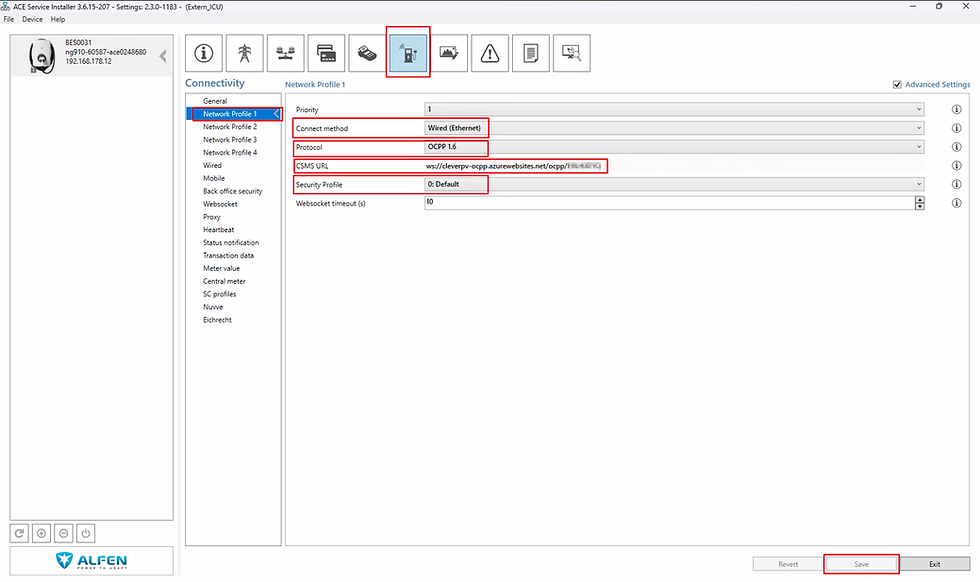
3. Go to the "Connectivity" menu and select "Network Profile 1". There, you can enter the OCPP parameters for the wallbox.
Under "connect method", select the method you are using to connect to the internet.
The "Protocol" is OCPP 1.6
The "CSMS URL" is unique to your account. Copy this from our app and paste it into the wallbox settings. In some cases, it may be necessary to use "ws://" instead of "wss://".
The "Security Profile" is "0: Default".
Click "Save" to apply the settings.
4. To properly control the charging session, it is important to set the authorization to RFID.
You may need to purchase an RFID license for this. Our system can then automatically start and pause the charging session. To do this, go to the "Authorization" menu, select "Authorization", and set the "Authorization mode" to RFID.
Click "Save" to apply the settings.

5. To use automatic power adjustment, go to the "Load balancing" menu and check the box for "Active Load Balancing". This feature may be a paid option from Alfen. To use phase switching, check the box for "Allow single-/multiphase charging".
Click "Save" to apply the settings and restart the wallbox!

6. The wallbox will now connect to our backend, and you can select it there to continue the setup. In some cases, the wallbox may appear as offline after setup; wait a moment or refresh the page to update the status. It may also help to unplug the vehicle or reconnect it to the wallbox.
You can now have your wallbox controlled automatically and charge your car with low-cost solar power! Please note that we cannot provide software updates for the wallbox. If an update is required, you must obtain it from the manufacturer.
If you wish to remove our backend connection, simply delete the OCPP link using the ACE Installer, and you can then reset all settings in your wallbox.